9 Essential Factors for Choosing an External SSD for Backup
Choosing the right external SSD for backup is a critical decision for anyone relying on digital assets—whether safeguarding a freelancer’s project files, a photographer’s raw images, or a family’s cherished memories. For example, a video editor might need a high-speed SSD to back up 4K footage without delays, while a small business could require a rugged, high-capacity drive to protect client databases. The process involves balancing speed, durability, and compatibility to ensure seamless data recovery when needed.
The importance of selecting an external SSD for backup cannot be overstated in an era where data loss can stem from hardware failure, accidental deletion, or cyber threats. Unlike traditional HDDs, SSDs offer faster transfer speeds, lower power consumption, and greater resistance to physical shock, making them ideal for portable and frequent-use backups. Historically, HDDs dominated backups due to lower costs, but SSDs have become the gold standard for performance-critical applications, especially as prices have dropped in recent years.
This guide covers the key considerations when selecting an external SSD for backup, from evaluating storage capacity and interface types to assessing durability and encryption features. By the end, readers will understand how to match their needs with the right hardware, ensuring reliable and efficient data protection.
1. Storage Capacity Needs
Storage capacity is the foundation of any backup strategy. The right amount depends on the volume of data to be stored and future growth. A single 1TB SSD might suffice for a casual user with documents and photos, while professionals like architects or filmmakers may need 2TB or more to accommodate large files. For instance, a 4K video file can consume 50GB or more, so a 2TB SSD would store roughly 40 such files.
When evaluating capacity, consider the 3-2-1 backup rule: maintain three copies of data, stored on two different media, with one copy offsite. This ensures redundancy against hardware failure or theft. For example, a 4TB SSD could serve as the primary backup for a workstation with a 2TB HDD as a secondary local backup and a cloud service for offsite redundancy.
Another factor is file fragmentation. SSDs handle smaller files more efficiently than HDDs, but large, fragmented files can slow down transfers. Using tools like Windows Defragmenter (for SSDs, use Optimize Drives) or third-party utilities can mitigate this issue, but choosing an SSD with ample capacity upfront reduces the need for frequent reorganization.
2. Interface Types and Transfer Speeds
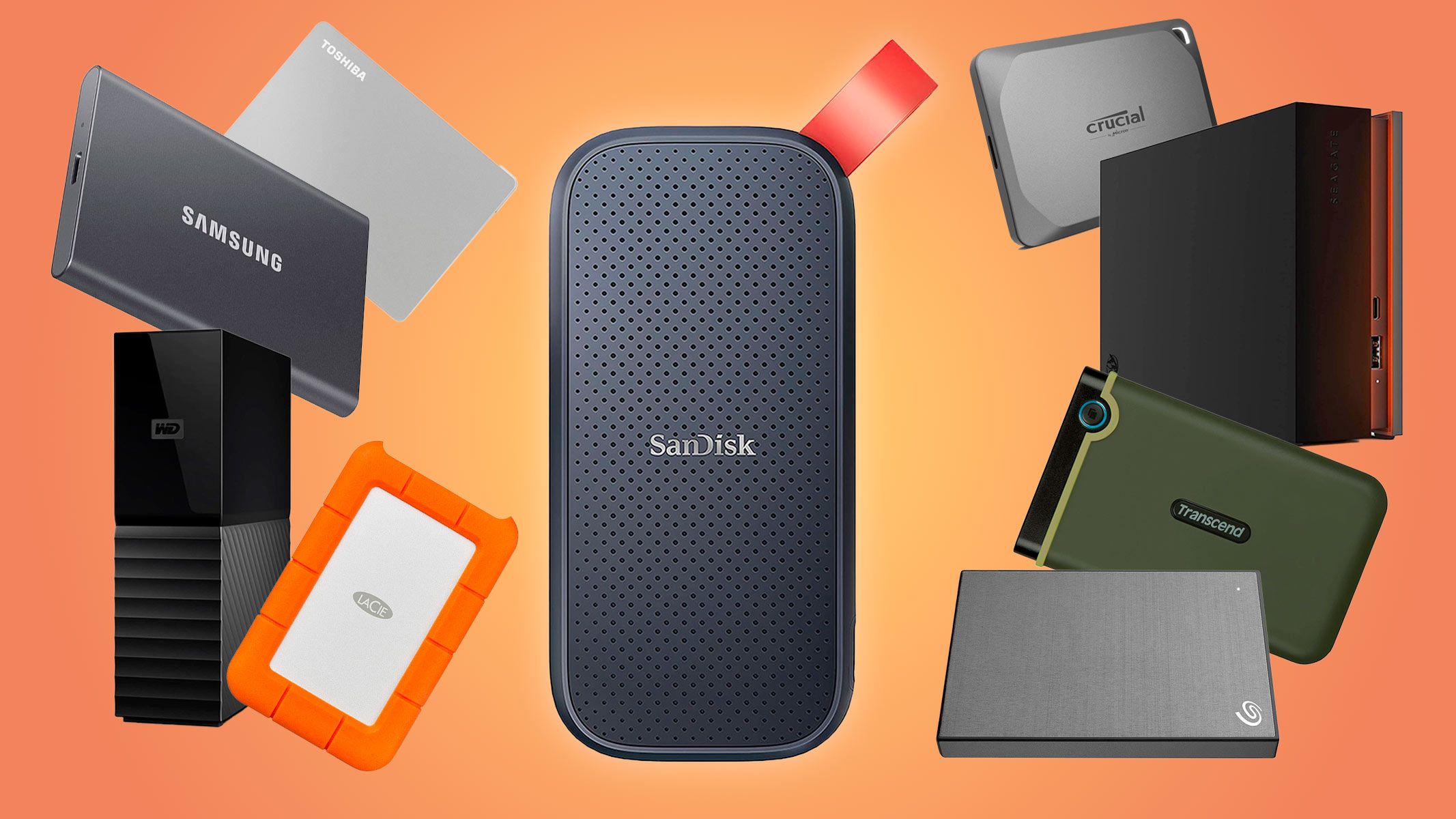
The interface of an external SSD dictates its speed and compatibility with devices. The most common interfaces include USB 3.2 Gen 2, Thunderbolt 3/4, and USB4, each offering different performance tiers. A USB 3.2 Gen 2 SSD typically delivers speeds up to 10Gbps, sufficient for everyday backups, while Thunderbolt 4 can reach 40Gbps, ideal for professionals handling large media files.
For example, the Samsung T7 Shield with a USB 3.2 Gen 2 interface achieves read speeds of up to 1,050MB/s, making it a strong choice for general use. In contrast, the OWC Envoy Pro FX with Thunderbolt 3 offers 2,800MB/s, better suited for 4K video editing or virtual machine backups. Always check the interface of the host device to ensure compatibility—older laptops may lack USB4 or Thunderbolt ports.
Transfer speed also impacts backup frequency. Faster SSDs reduce the time required for daily or weekly backups, minimizing downtime. However, speed alone shouldn’t dictate the choice; balance it with other factors like durability and cost. A slower but more rugged SSD might be preferable for fieldwork where physical damage is a risk.
3. Durability and Physical Protection
Durability is a critical consideration for external SSDs, especially those used in mobile or rugged environments. Features like shock resistance, IP ratings for water/dust protection, and reinforced casings enhance longevity. For instance, the SanDisk Extreme Pro boasts an IP55 rating, meaning it resists dust and water jets, while the LaCie Rugged SSD Pro is designed to withstand drops and vibrations, making it ideal for construction sites or outdoor photography.
- Shock resistance: SSDs are inherently more durable than HDDs due to their lack of moving parts, but some models, like the Crucial X9, are built to survive drops from up to 6 feet. This is crucial for users who carry their backups in bags or backpacks. Without such protection, a dropped SSD could suffer data corruption or physical damage.
- Temperature tolerance: Extreme temperatures can degrade SSD performance or cause data loss. Models like the WD My Passport SSD operate reliably between -13°F to 158°F (-25°C to 70°C), suitable for vehicles or outdoor use. Ignoring temperature limits risks throttling or failure during critical backups.
- Build materials: Aluminum or magnesium alloys, as seen in the G-Technology G-Drive, provide better heat dissipation and impact resistance than plastic casings. This translates to longer lifespan and fewer failures in high-stress environments.
- Water and dust resistance: IP67 or IP68 ratings indicate full immersion protection, essential for marine or industrial applications. The Toshiba Canvio Basics offers IP67, ensuring data integrity even if exposed to rain or spills.
- Portability features: Compact designs with retractable cables, like the Samsung T7, reduce snagging risks during travel. This small detail can prevent accidental disconnections or cable damage, which are common causes of backup failures.

4. Encryption and Data Security
Data security is non-negotiable for external SSDs, particularly when storing sensitive information. Hardware-based encryption, such as AES-256, ensures that data remains unreadable without the correct password, even if the drive is lost or stolen. Most modern SSDs, including the Kingston DataTraveler Vault Privacy, offer built-in encryption, eliminating the need for separate software solutions.
Encryption is especially vital for compliance requirements. Industries like healthcare (HIPAA) or finance (GDPR) mandate strict data protection measures. Without encryption, a lost SSD could expose confidential client records or intellectual property. For example, a lawyer using an unencrypted SSD to back up case files risks violating ethical guidelines and facing legal repercussions.
Some SSDs also support secure erase functions, allowing users to remotely wipe data if the device is lost. This feature is available in enterprise-grade models like the Seagate Backup Plus Hub, which includes a password manager and secure file deletion tools. Always enable encryption during setup to avoid retrofitting security later.
5. Compatibility with Operating Systems
Compatibility with operating systems and devices is often overlooked but can lead to frustration if ignored. Most external SSDs use the NTFS, exFAT, or FAT32 file systems, each with distinct advantages. NTFS is ideal for Windows systems and supports large file sizes, while exFAT is more versatile, working seamlessly with Windows, macOS, and Linux. FAT32, though widely compatible, has a 4GB file size limit, making it unsuitable for modern media files.
For example, a Mac user might prefer an SSD formatted with exFAT to avoid compatibility issues when transferring files to a Windows PC. Conversely, a Linux user should verify that the SSD is recognized out of the box, as some manufacturers use proprietary drivers. Always format the SSD with the appropriate file system before use to prevent data access errors.
Another consideration is driver support. Some high-speed SSDs, particularly those using Thunderbolt or USB4, may require updated drivers for optimal performance. Before purchasing, check the manufacturer’s website for compatibility lists or downloadable utilities. Ignoring this step can result in slower transfer speeds or even device recognition failures.
6. Brand Reputation and Warranty Coverage
Brand reputation and warranty coverage provide peace of mind, especially for long-term backups. Established manufacturers like Samsung, SanDisk, and Western Digital offer reliable products with extensive warranties, often ranging from 3 to 5 years. For instance, Samsung’s SSDs come with a 5-year limited warranty, while SanDisk’s Extreme Pro series includes a 3-year limited warranty. These warranties typically cover defects but may exclude damage from drops or water exposure.
Customer reviews and expert tests can reveal real-world reliability. For example, the Samsung T7 Shield consistently earns high marks for durability and speed in tech reviews, whereas budget brands may lack long-term performance data. Prioritizing reputable brands reduces the risk of premature failure, which is critical for backups that may not be replicated elsewhere.
Warranty terms also dictate replacement policies. Some brands offer RMA (Return Merchandise Authorization) for defective units, while others provide on-site repairs or replacements. Always review the warranty fine print to understand coverage limits, such as geographical restrictions or proof-of-purchase requirements.
7. Power Requirements and Portability
Power requirements can influence usability, particularly for portable SSDs. Most external SSDs are bus-powered, drawing power from the USB or Thunderbolt port, but some high-performance models may require additional power adapters. For example, the OWC Envoy Pro FX includes a power adapter for optimal Thunderbolt performance, which adds bulk but ensures stability.
Portability extends beyond physical size to include weight and connectivity options. A lightweight SSD like the Crucial X9 (weighing just 1.6 oz) is easier to carry in a pocket, while larger models may need a dedicated case. Additionally, consider whether the SSD includes a Y-cable for dual-device charging or a retractable cable to prevent tangling during travel.
Battery life is another indirect factor. If using the SSD with a laptop, ensure the device’s USB port can sustain power during transfers. Some ultrabooks may throttle performance if the SSD draws too much power, leading to incomplete backups. Testing the SSD with the intended device beforehand can reveal any compatibility issues.
8. Cost vs. Performance Trade-offs
Cost is a primary factor for most buyers, but it should not overshadow performance and reliability. Entry-level SSDs like the SanDisk Ultra Touch offer good value at around $80 for 1TB, while premium models such as the Samsung 980 Pro can exceed $200 for the same capacity. The price difference often reflects speed, durability, and additional features like encryption or ruggedness.
A cost-effective strategy is to prioritize capacity over speed for backups, as transfer rates matter less when restoring data than when creating it. For example, a 2TB SSD with USB 3.2 Gen 1 speeds may suffice for document backups, whereas a 1TB SSD with Thunderbolt 3 is overkill for the same use case. Always compare price-to-performance ratios to avoid paying for unnecessary features.
Budget SSDs may also lack long-term reliability. Cheaper models might use lower-grade NAND flash, leading to faster wear and shorter lifespans. Investing in a mid-range SSD from a reputable brand often provides the best balance between cost and durability, ensuring backups remain intact for years.
9 Proven Tips for Selecting an External SSD for Backup
Selecting the right external SSD for backup requires attention to detail and proactive planning. These tips streamline the decision-making process and ensure long-term reliability.
Tip 1: Calculate your storage needs based on current and future data growth. Use the 3-2-1 backup rule as a guideline, and choose a capacity that accommodates at least 1.5x your largest data set to allow for growth.
Tip 2: Prioritize interfaces that match your devices’ capabilities. Avoid overpaying for Thunderbolt if your laptop only supports USB 3.2, but invest in faster interfaces if you work with large media files.
Tip 3: Enable hardware encryption during setup to protect sensitive data. AES-256 encryption ensures that even if the SSD is lost or stolen, unauthorized users cannot access your files without the password.
Tip 4: Opt for SSDs with IP ratings if you work in harsh environments. Models rated IP55 or higher resist dust and water, making them ideal for outdoor or industrial use.
Tip 5: Check warranty terms before purchasing to understand coverage limits. Some warranties exclude accidental damage, while others offer extended coverage for an additional fee.
Tip 6: Format the SSD with exFAT for maximum cross-platform compatibility. This file system works on Windows, macOS, and Linux without restrictions, unlike NTFS or FAT32.
Tip 7: Test the SSD with your primary device before relying on it for backups. Verify transfer speeds, compatibility, and stability to avoid surprises during critical data recovery.
Tip 8: Store backups in a cool, dry place to extend the SSD’s lifespan. Heat and humidity accelerate wear, so avoid leaving the SSD in direct sunlight or enclosed spaces.
Tip 9: Schedule regular backup checks to ensure data integrity. Use built-in tools like Windows File History or third-party software to verify backups and replace corrupted files promptly.
Conclusion
Choosing an external SSD for backup involves evaluating storage capacity, interface speeds, durability, security, and compatibility to match specific needs. Whether prioritizing speed for media professionals or ruggedness for fieldwork, the right SSD ensures reliable data protection against hardware failures, theft, or accidental loss. By following the guidelines outlined—such as adhering to the 3-2-1 backup rule, enabling encryption, and selecting reputable brands—users can safeguard their digital assets effectively.
As data volumes grow and storage technologies evolve, staying informed about emerging SSD features—like increased capacities or faster interfaces—will further enhance backup strategies. Investing time in the selection process today pays off in peace of mind tomorrow.
Frequently Asked Questions
Are external SSDs faster than HDDs for backups?
Yes, external SSDs are significantly faster than HDDs for backups. SSDs use flash memory, achieving read/write speeds of 500MB/s to 2,800MB/s, depending on the interface, while HDDs typically max out at 150MB/s. This speed difference reduces backup times from hours to minutes, making SSDs ideal for large or frequent backups.
Can I use an external SSD for both backup and primary storage?
While possible, using an external SSD for primary storage is not recommended for backups. Primary storage requires constant read/write operations, which can degrade SSD lifespan faster than occasional backups. Instead, dedicate the SSD solely to backups or use it as a secondary drive with limited write cycles.
How do I know if my laptop supports Thunderbolt or USB4?
Check your laptop’s specifications in the manual or manufacturer’s website. Thunderbolt 3/4 ports are often marked with a lightning bolt symbol, while USB4 ports may be labeled accordingly. Alternatively, use Windows’ Device Manager or macOS’ About This Mac to identify connected ports and their capabilities.
What file system should I use for cross-platform compatibility?
For cross-platform compatibility, use the exFAT file system. It works seamlessly with Windows, macOS, and Linux, unlike NTFS (Windows-only) or FAT32 (4GB file limit). Most external SSDs support exFAT, and it can be formatted easily using built-in tools in Windows or macOS.
Do I need to back up my SSD’s firmware?
No, backing up firmware is unnecessary. Firmware updates are handled automatically by the SSD manufacturer and stored internally. Focus instead on backing up user data, applications, and system files to ensure full data recovery in case of SSD failure.
How often should I replace my external SSD for backups?
External SSDs typically last 3–5 years for backups, depending on usage and quality. Monitor performance for signs of degradation, such as slower speeds or read/write errors. Replace the SSD if it fails to function reliably or if the warranty expires, ensuring data remains secure.